
TABLE OF CONTENTS
- Summary
- How merging works
- When merging
- In merge mode
- How to merge profiles
- Troubleshooting
- Ongoing monitoring after merging
Summary
If two profiles exist for the same individual or entity, you can merge them into one. Merging helps clean up duplicates and ensures a single source of truth.
For how to view and navigate a profile, see Navigating the profiles page.
How merging works
- You'll be shown all available values (e.g. name, DOB, email) for each data field and can select which one to keep.
- Requirements from both profiles are retained.
- A warning message appears before confirming the merge, as it cannot be undone.
When merging
- Restricted profiles can only be merged by users who have access to both profiles. (See Profile access in Understanding types of user roles for the full access rules.)
- Users without access will need to ask someone with appropriate permissions (e.g. Compliance Admin or Office Admin) to complete the merge.
- Only users with elevated roles such as Compliance Admins, Approvers, or Office Admins can perform a bulk merge.
In merge mode
You'll see extra fields to help confirm which profiles to merge:
- For individuals: date of birth and email address
- For entities: unique identifier and registered country
This is especially useful when dealing with common names.
How to merge profiles
- On the left-hand navigation bar, click the Profiles tab.
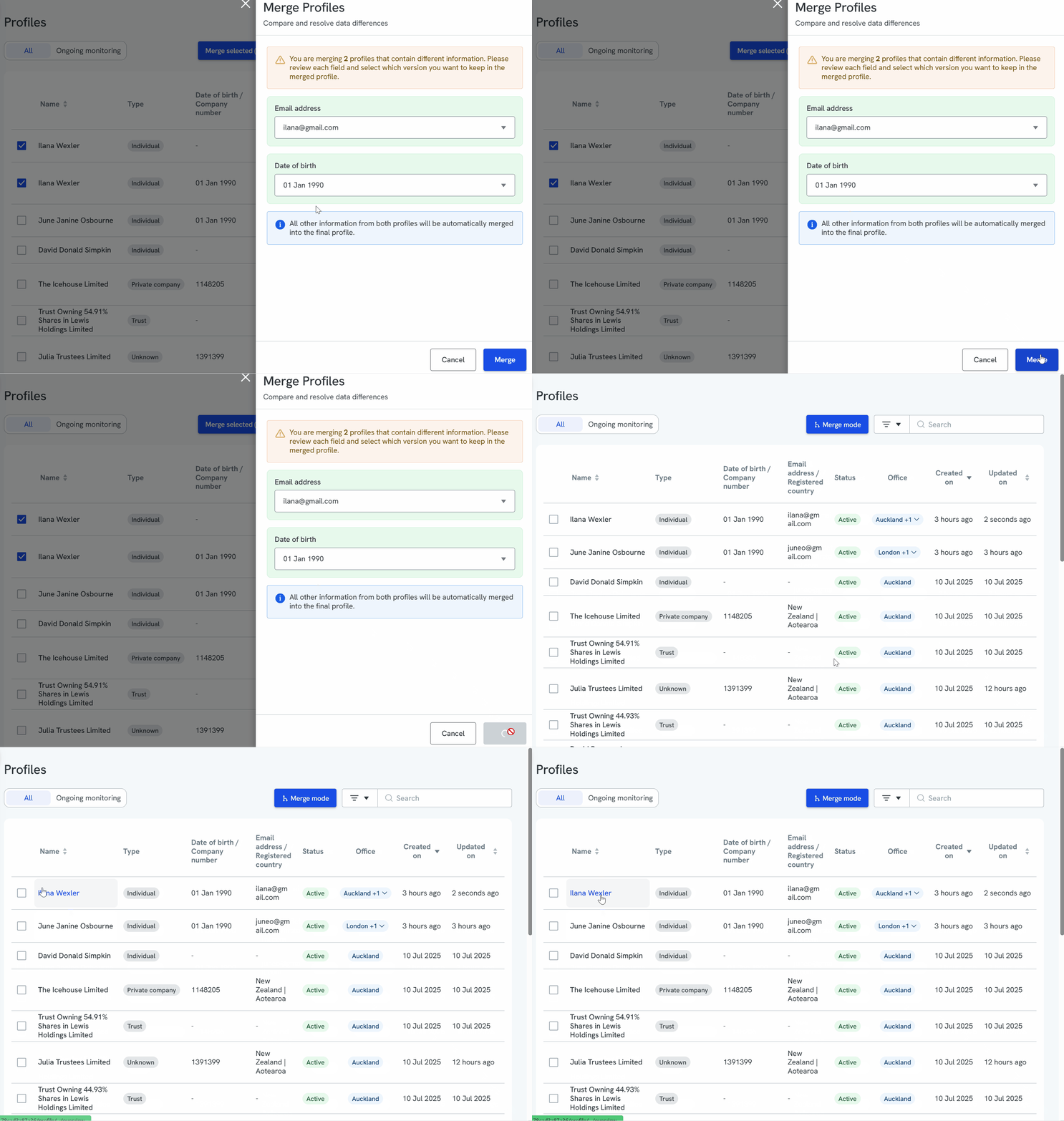
- In the Profiles window, click the Merge mode button in the top right-hand corner.
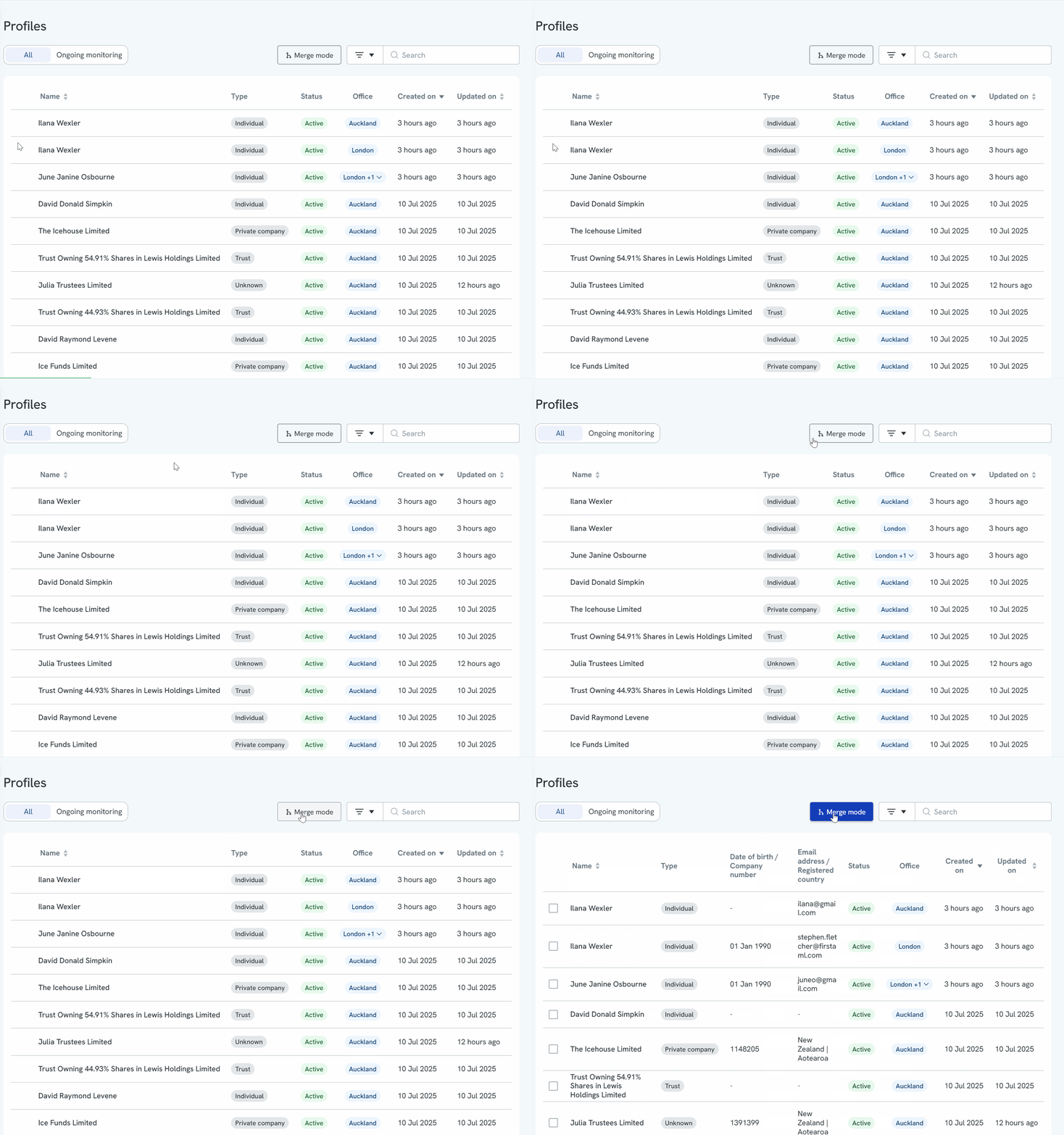
- Once in merge mode, select the profiles you wish to merge into one.
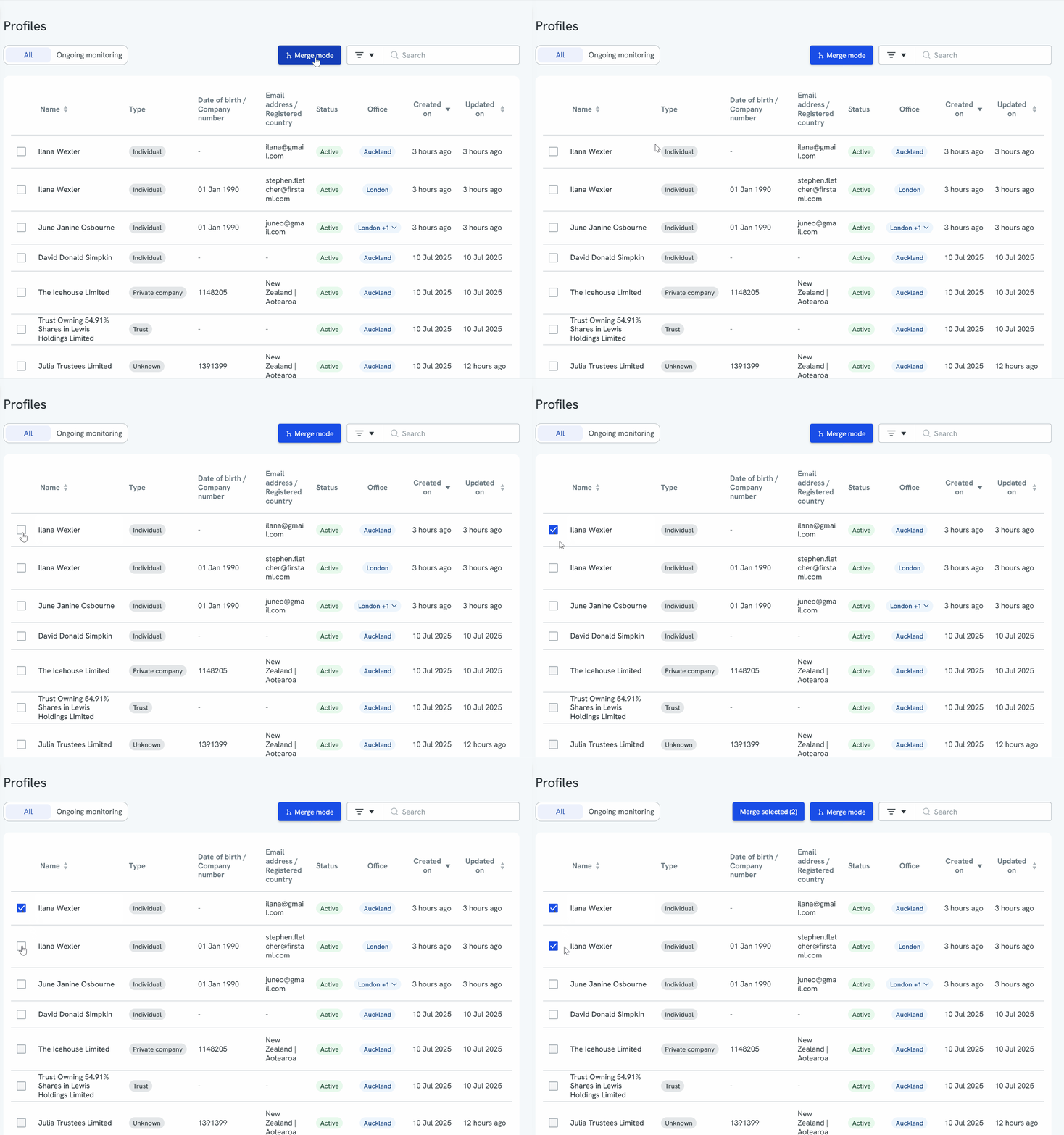
- Once the relevant profiles have been selected, click Merge selected in the top right-hand corner to start the merge.
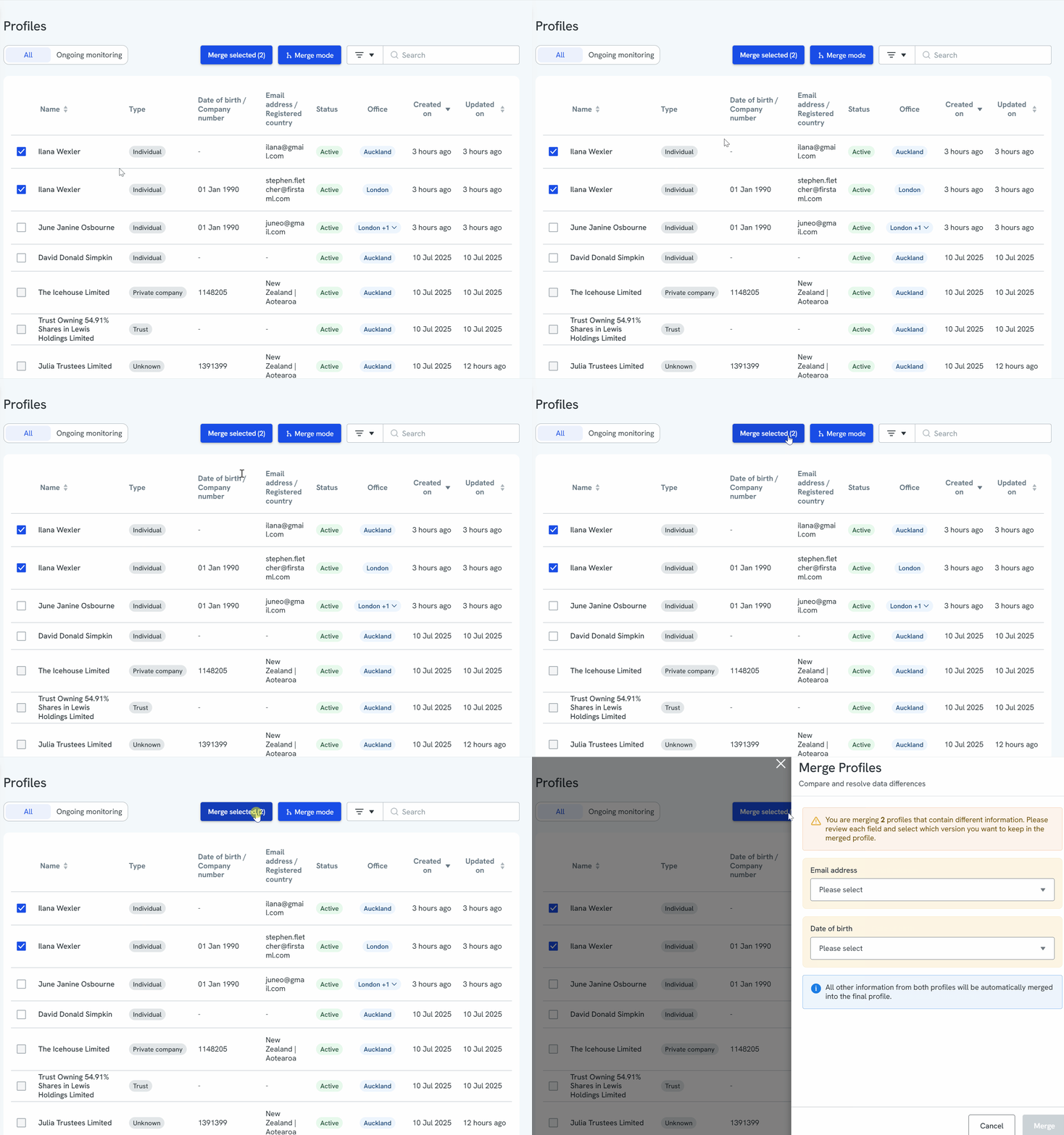
5. When you click Merge selected, a window opens where you can confirm which details from each profile should be listed on the merged profile. Note: if the details are exactly the same across profiles, you won't need to confirm, this only appears for fields with different information across the profiles you're merging.
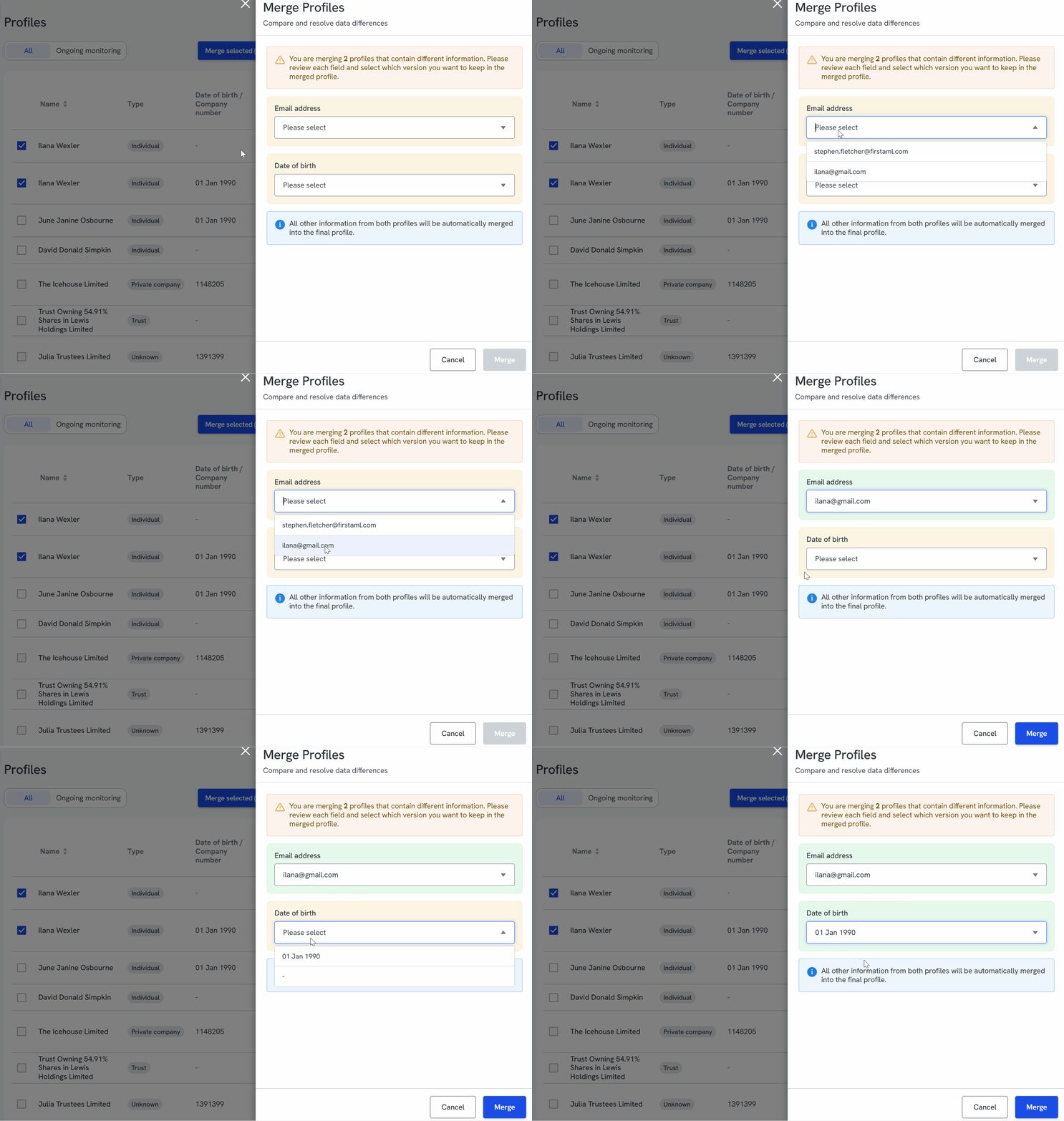
- After confirming the information that should appear on the merged profile, click Merge to finalise your updates.
You'll now see one profile for the relevant individual or entity.
Troubleshooting
If you receive an error when trying to merge profiles, this may be because both selected profiles are already associated with the same case.
To resolve this: remove one of the individuals from the case, then re-add them. When re-adding the individual, make sure to select the existing "In Case" profile to prevent creating a duplicate profile.
Ongoing monitoring after merging
When you merge profiles, the information you select during the merge determines the ongoing monitoring settings for the merged profile. We recommend double-checking your selections carefully before confirming the merge.
If you're merging profiles with matching information, the following logic determines which ongoing monitoring results are retained:
Entity profile — the platform prioritises, in order:
- Entity name
- Registered country
- Entity type
- Whether the profile has active ongoing monitoring
- Earlier profile creation date
Individual profile — the platform prioritises, in order:
- Legal name
- Date of birth
- Whether the profile has active ongoing monitoring
- Earlier profile creation date