
TABLE OF CONTENTS
- Summary
- Before you start
- Retrieving individuals
- Retrieving entities
- Verification report history
- Retrieving requirements
- Troubleshooting
Summary
Retrieving allows you to pull verified information from existing profiles into your current case, saving time and avoiding unnecessary duplication. You can retrieve either individuals or entities, depending on your workflow.
Before you start
You can only retrieve an individual or entity if they're from the same office as your current case. If they're not, you won't be able to retrieve them directly — see the Verification report history section below for an alternative way to view their prior results.
Retrieving individuals
You can retrieve individuals in several ways:
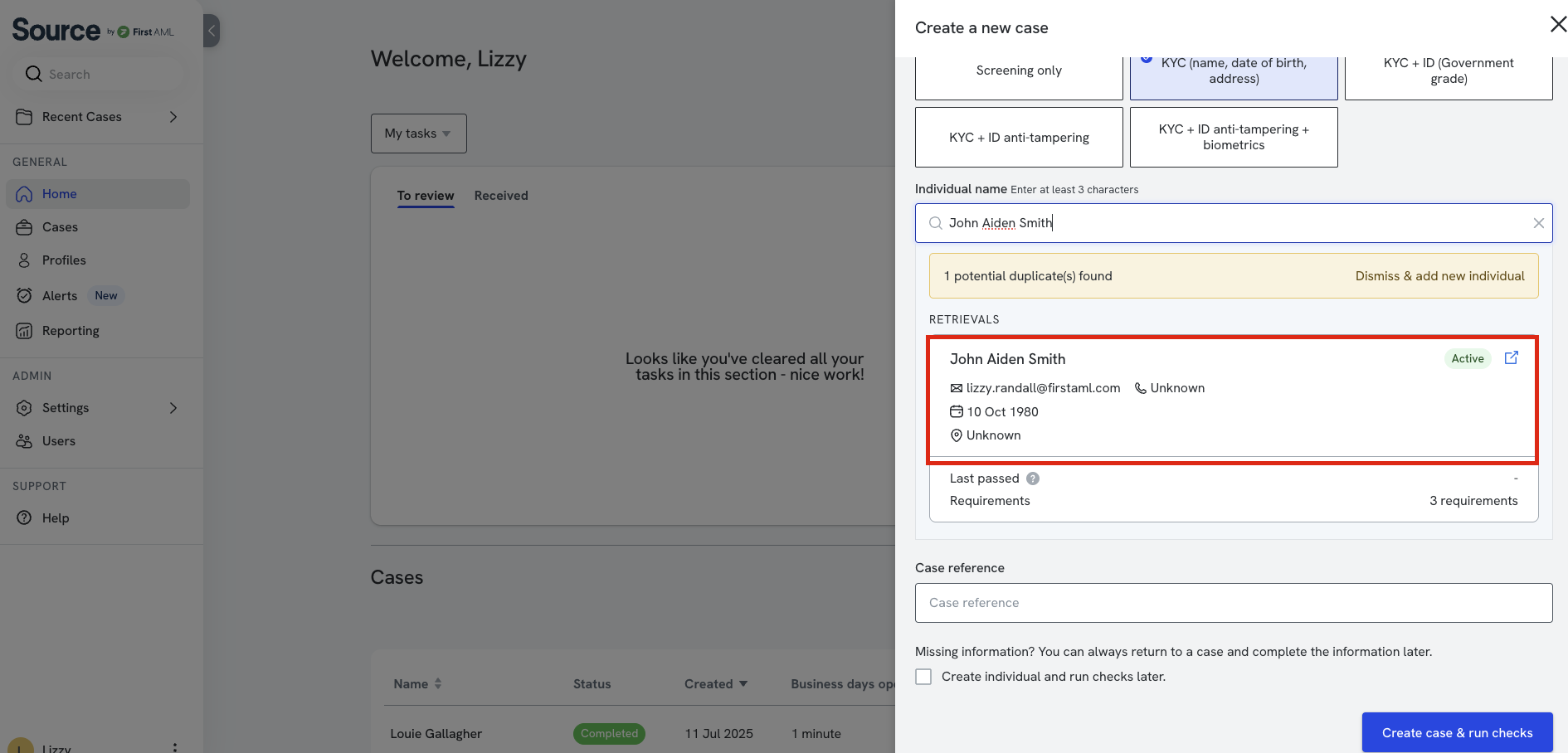
During individual case creation (one individual)
- Enter the individual's name.
- If the individual already exists in the platform, the system may flag a match.
- Click the relevant match — this retrieves all existing information into the new case.
- If you can't find your client and you've verified them before, you may need to go back to their original case and confirm they've been placed into the "passed" status (i.e. their profile shows an overall verification result of Pass).
From the Quick Actions panel
- In an existing case, click Add individual.
- Type the name of the individual.
- If the individual already exists in the platform, the system may flag a match.
- Click the match, then click Save to pull through verified details and requirements.
Via the entity structure (Structure tab)
- When adding an individual to an entity structure, search for an existing profile.
- If a match is found, retrieve their profile and associated requirements.
Retrieving entities
You can retrieve entities either during case creation, or through the Structure tab of a case.
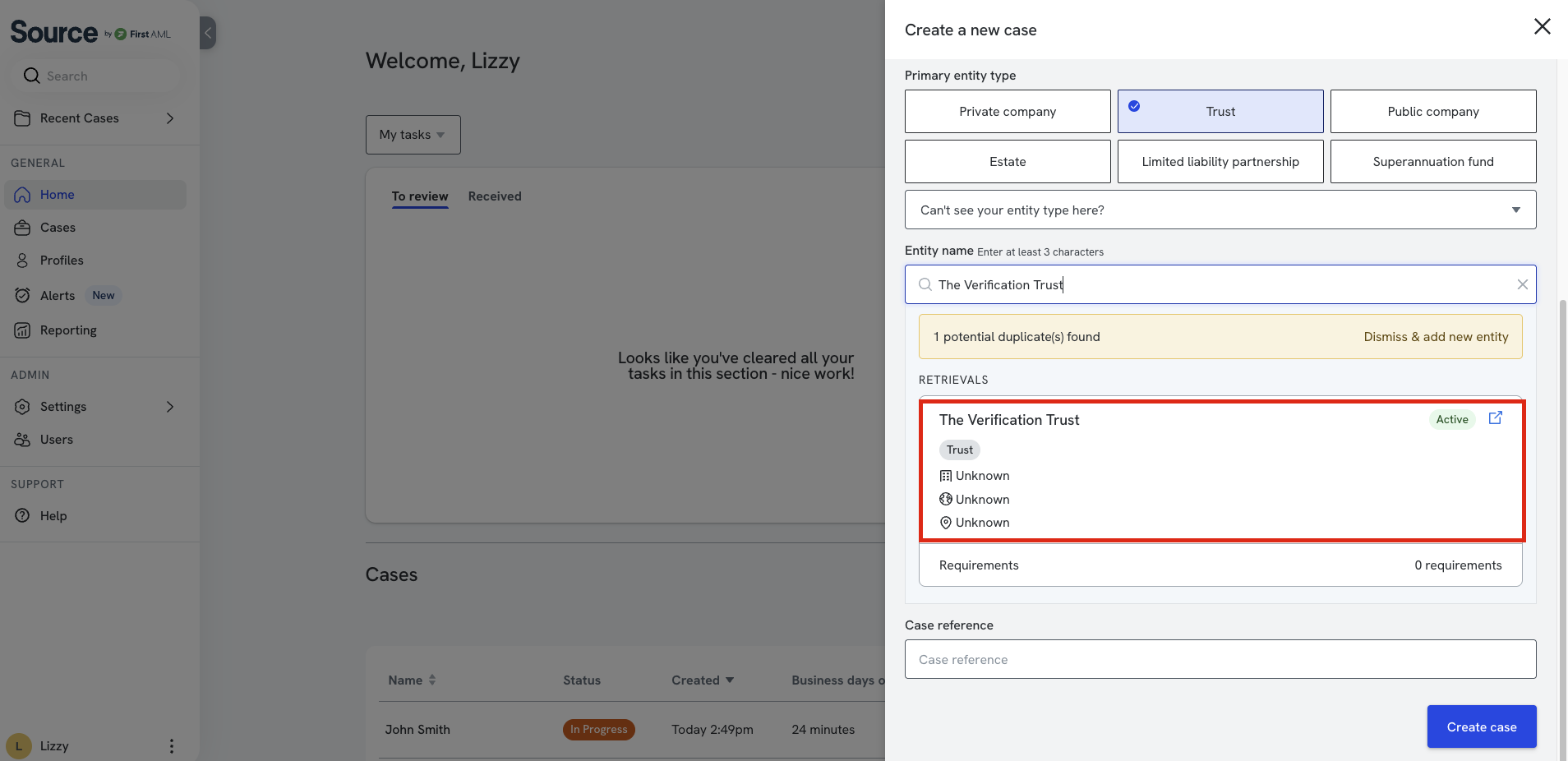
During entity case creation
- Enter the entity name.
- If the entity already exists in the platform, the system may flag a match.
- Click the relevant match — this retrieves all existing information into the new case.
- If you can't find your client and you've verified them before, you may need to go back to their original case and confirm they've been placed into the "passed" status.
Via the Structure tab
- Go to the Structure tab in your case.
- Click Edit.
- Click the blue +.
- Type the name of the entity — if a match is found, this will be flagged.
- Click the match.
- Click Add Entity.
What gets retrieved
- Individuals — profile information like name, date of birth, and address. Requirements are retrieved depending on whether the checkbox is ticked (see Retrieving Requirements below).
- Entities — all profile information for the entity, plus any linked individuals or child entities already verified. Requirements are retrieved depending on whether the checkbox is ticked.
Verification report history
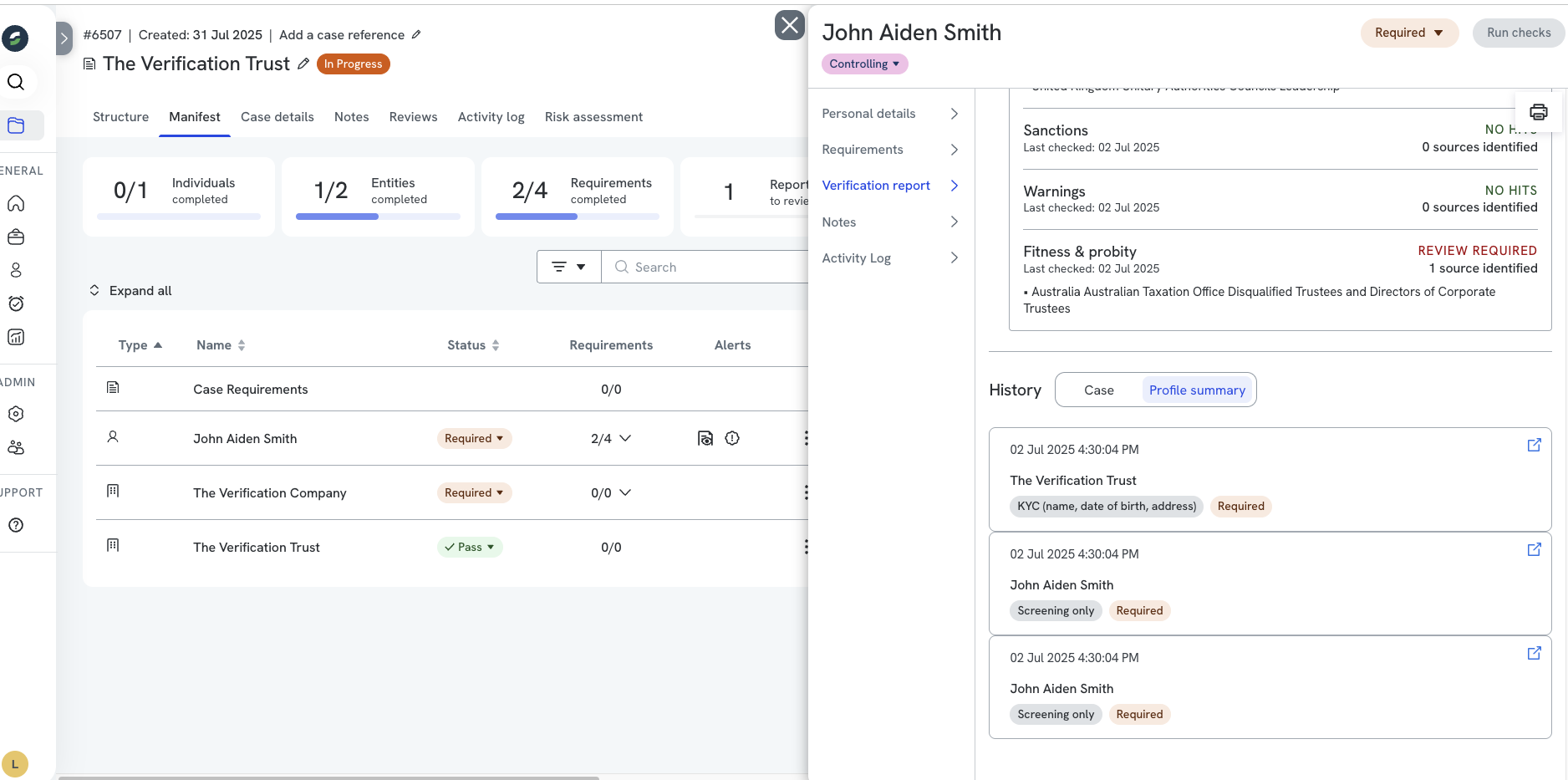
The Verification report "History" contains historical verification reports at a case and profile level.
- Case — all reports run within the case.
- Profile summary — verification reports within previous cases the individual is associated with. Click through the list of previous reports to review the underlying results.
Retrieving requirements
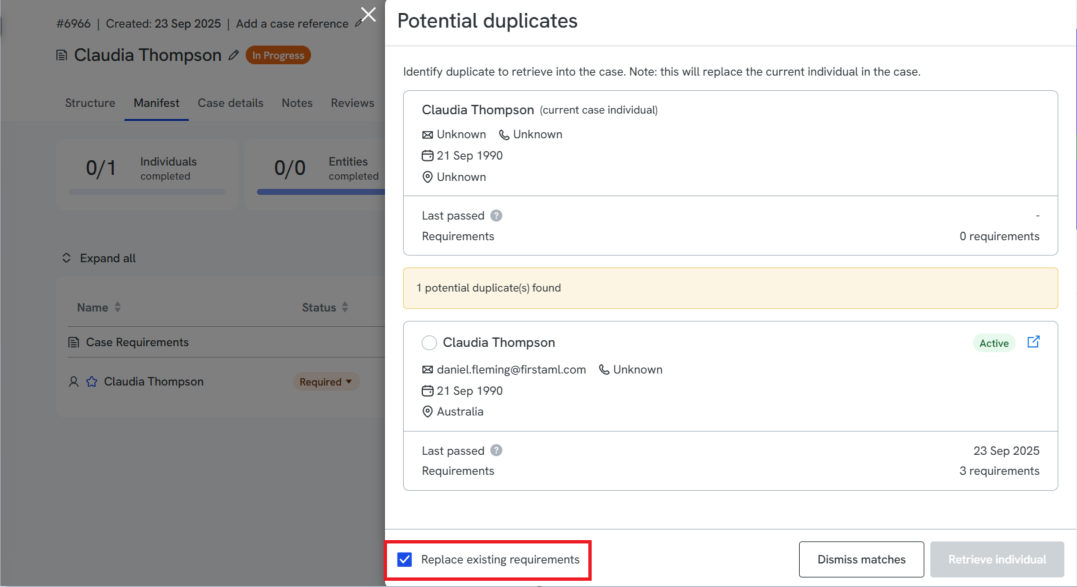
When retrieving requirements from a profile into a case, you can choose between replacement and non-replacement of the requirements on the profile. The checkbox defaults to ticked (replacement); to use the non-replacement path, untick the box before retrieving the profile into the case.
Replacement (checkbox ticked)
- Any requirements that are also on the profile (and exist on another case) are deleted from the case entity/individual.
- All requirements are then retrieved from the profile at the status they were in — completed, received, or open.
- The Individual Verification Details requirement status is reset to open/required. For example, if it was previously marked Completed or Received, it moves back to Open/Required. This allows the EIV (Electronic Identity Verification) form to be resent as needed — if it doesn't need to be resent, you can mark the verification details as completed instead.
Non-replacement (checkbox unticked)
- Existing requirements on the case entity/individual stay in place.
- Any additional requirements from the profile are also retrieved, as long as the requirement allows multiple, or it doesn't allow multiple but isn't already present on the entity/individual.
- The Individual Verification Details requirement status remains unchanged — for example, if it was already Completed, it stays Completed.
Troubleshooting
If you receive an error when trying to retrieve an individual or entity, this may be because both selected profiles are already associated with the same case.
To resolve this: remove the individual/entity from the case, then re-add them by selecting Add individual on the right-hand side.
Remember, you can only retrieve an individual if they're from the same office. If they're not, you should still be able to see their report via the Profile summary tab in the Verifications tab, without needing to delete and re-add them.